




What the Meta pixel does (and what changed in 2026)
The Meta pixel is a JavaScript snippet that loads Meta's tracking library on your site. Out of the box it fires one event, PageView, on every page load, according to Meta's developer documentation. Everything else you add yourself: Lead, Schedule, Purchase. Those events are how Meta learns which ad clicks turned into business. For the basics in plain words, see what the Meta pixel is and how it works.
The pixel measures results in Ads Manager and builds audiences for remarketing. It also feeds the delivery system that decides who sees your conversion campaigns, and that is the job people underestimate. If your Lead event fires on the wrong page, Meta goes looking for more people who load that page. Your cost per lead looks fine. Sales stay flat.
Older tutorials will trip you up in a few places. Events Manager now lists pixels as datasets, because one dataset holds both browser (pixel) and server (Conversions API) events. The Meta Pixel Helper extension has been renamed Meta Ads Data Advisor and runs in Chrome and Edge. And the old routine of ranking eight events under Aggregated Event Measurement is widely reported as retired for web campaigns since mid-2025. If you cannot find that tab, you are not missing anything, so do not lose an afternoon hunting for it.
Before you start: what you need ready
Most setups that stall, stall on access, not on code. Get these sorted before you open Events Manager:
No thank-you page after your forms? Add one first. A unique URL such as /thank-you/ is the easiest trigger to build and the hardest to break when someone redesigns the form later. Plan your UTM parameters at the same time, so one lead gets attributed the same way in Ads Manager, GA4 and your CRM.
- Admin access to your Meta Business portfolio (formerly Business Manager) and to the ad account that will use the data.
- Access to the site: the CMS admin, the theme header, or a Google Tag Manager container.
- A short list of money actions, usually 1 to 3: a form submit, a booking, a purchase. If you cannot name them yet, stop and decide. Tracking everything is how you end up optimizing for nothing.
- A confirmation state for each action: a thank-you page or a clear success message you can trigger on.
- A consent banner that can hold back marketing tags until the visitor agrees (required in the UK and EU).
How to create a Meta pixel in Events Manager
Creating the pixel gives you an ID and base code. That is all. Nothing gets tracked until the code is on your site. Meta moves buttons around often, so treat these labels as a guide, not gospel:
Our rule: one pixel per business, owned by the business. Spread your data across several pixels and you split your audiences and the conversion history Meta learns from. Check ownership before anything else. If a past agency or freelancer created the pixel inside their own portfolio, ask them to transfer it or share it with full control. Finding out after you have built audiences on it means rebuilding them from zero, which is the expensive way to learn who owns your data.
- Open Events Manager from the menu in Meta Business Suite or Ads Manager.
- Click Connect data (the green plus icon), choose Web, then Connect.
- Name the dataset after the business or website, never after a campaign.
- Enter your website URL. Meta checks whether your platform (Shopify, WooCommerce, Wix, Squarespace and others) has a partner integration.
- Choose Conversions API and Meta pixel if offered. Pixel only is fine for day one, as long as the server side is on the plan.
- Copy the pixel ID. You will paste it into GTM, a plugin or the base code.
- In Business settings, under Data sources, assign the dataset to your ad account and to any agency partner.
Meta pixel setup: 3 ways to install the base code
The base code goes in the head of every page you want to track. Meta offers three routes: a partner integration, a tag manager, or pasting the code by hand. Pick by what your site runs on, not by which option sounds most advanced.
For custom and lead generation sites, our default is Google Tag Manager. The container that already fires your GA4 and Google Ads tags can fire Meta's too, with consent rules kept in one place. Adding a Lead event later does not mean waiting for a developer. If you want this built and tested for you, our GA4, Google Tag Manager and conversion tracking setup covers the Meta pixel and Conversions API in the same project.
In GTM the setup is short. One tag holds the base code and fires on all pages (after consent where required). Then add one tag per event, such as fbq('track', 'Lead'), firing on your thank-you page or form-success trigger. Turn on tag sequencing so the base tag always fires before the event tag, otherwise an event can fire before fbq even exists. New to the tool? Start with what Google Tag Manager is.
On Shopify, use the native Facebook and Instagram sales channel and nothing else. After connecting, check its data-sharing level. A lower level sends fewer server events, and several 2026 guides report merchants losing events after a default setting changed without them noticing. Recheck that setting after app or theme changes, because nobody gets a warning when it moves.
| Method | Best for | Strengths | Watch out for |
|---|---|---|---|
| Partner integration (Shopify, WooCommerce, Wix, Squarespace) | Ecommerce stores and site-builder sites | Fastest route; standard ecommerce events and often the Conversions API come built in | Do not also paste the code in the theme or GTM, or every event fires twice |
| Google Tag Manager | Custom sites, lead gen sites, anything already running GA4 through GTM | One container for Meta, GA4 and Google Ads; triggers change without a developer; consent rules in one place | Triggers break silently when forms or URLs change, so retest after every site update |
| Manual code in the head | Simple static sites with no CMS or tag manager | No extra tools; the automatic PageView call works out of the box | Every new event needs a code edit, and the code is easy to lose in a theme update |
Which events to track for leads, bookings and sales
Track the actions that pay your bills, plus a step or two before them. Use Meta's standard event names wherever one fits, since Meta's systems understand them with no extra setup. Custom events cover edge cases, but you have to turn them into custom conversions before you can optimize on them. Reach for one only when no standard name comes close.
Fire the Lead event on the success state, never on the page that holds the form. Fire it on page load and every visitor becomes a "lead", and Meta learns to buy you cheap clicks. The quickest sanity check: if Ads Manager reports more leads than your inbox or CRM received, the trigger is wrong.
Pick one primary event per campaign and make sure it gets enough volume. A store with only a few purchases a week can optimize for InitiateCheckout for a while, then switch to Purchase as orders grow. We would rather give Meta a frequent signal one step early than a rare one it cannot learn from. Once events are clean, run your numbers through the CPL calculator and compare them with our guide to how much Facebook ads cost in 2026.
| Business type | Primary event to optimize | Supporting events | Parameters worth sending |
|---|---|---|---|
| Lead generation (services, B2B, education) | Lead | ViewContent, Contact | Optional value per lead; hashed email and phone through the Conversions API |
| Appointments (clinics, salons, consultants) | Schedule | Lead, Contact | Service type as content_name; value if prices are fixed |
| Ecommerce | Purchase | ViewContent, AddToCart, InitiateCheckout | value, currency, content_ids, content_type |
| Subscriptions and apps | Subscribe or StartTrial | CompleteRegistration, ViewContent | value, currency, predicted_ltv |
Conversions API: why the pixel alone is not enough
The Conversions API sends the same events from your server instead of the visitor's browser. Meta's own best practice is a redundant setup, with key events such as Purchase, Lead or Contact going through both the pixel and the Conversions API. The server copy still arrives when an ad blocker or Safari's cookie limits stop the browser, or when a visitor closes the tab before the thank-you page finishes loading.
You can connect it four ways, from easiest to most flexible:
Deduplication is not optional. When the pixel and the server send the same event, give both the same event name and the same ID: eventID in the pixel call, event_id in the API call. Meta then counts the conversion once. Per Meta's deduplication documentation, matching events must arrive within 48 hours of each other. Skip this and Ads Manager double counts. Your cost per result looks better than it is, and you end up moving budget on numbers that were never real.
Then work on Event Match Quality, which Events Manager scores from 1 to 10 for each web event. Website server events need action_source, event_source_url and client_user_agent. Hashed email and phone, the fbp and fbc cookie values and the IP address help Meta match each event to a person. Only matched events count toward attribution and ad delivery. A low score means you paid for conversions Meta cannot learn from, so fix the score before you judge the campaign.
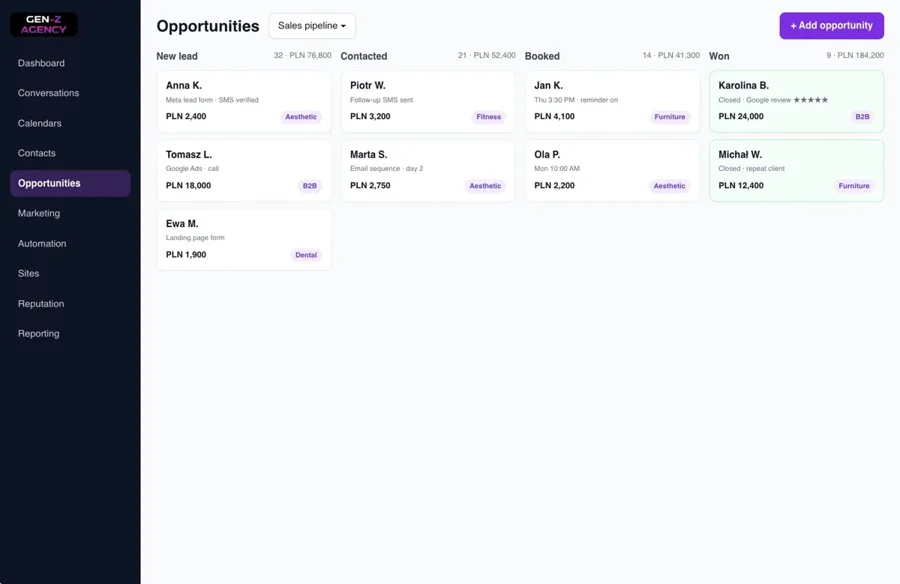
For lead generation, the most valuable server event is one the pixel never sees: the moment a lead becomes qualified in your CRM. Send that back and Meta learns from qualified leads instead of every form fill. After the basic Lead event, this is the server event we would build first for a lead gen business. It is also one reason every agency client of ours gets the Gen Z CRM App included at $0: leads land in a CRM with a sales pipeline and statuses, not in an inbox.
- Partner integration: Shopify, WooCommerce and most large platforms send server events once you switch the feature on.
- Guided setup in Events Manager or Meta Ads Data Advisor: Meta can configure the connection for supported sites.
- Server-side Google Tag Manager: one server container forwards events to Meta, GA4 and Google Ads. Our pick for custom sites with steady traffic.
- Direct API calls from your backend or CRM: the most work and the most control. It is also the only way to send events that happen after the website visit, such as a lead turning into a customer.
Meta pixel not firing? Check these 8 causes in order
Start with the tools. Browse your site with Meta Ads Data Advisor running, or open the browser's Network tab and filter for facebook.com/tr. Each request is one pixel event. Then open Test Events in Events Manager, enter your URL and complete the conversion yourself. Events appear there within seconds. The Overview tab can take a few minutes to catch up, so a lag there is not a failure.
If nothing shows up, go through the causes in order. The quick checks come first, so resist jumping straight to server-side theories.
One thing that is not a bug: Ads Manager and your CRM will never match exactly. Meta attributes conversions with its own click and view windows, and GA4 and your CRM apply their own rules. Watch trends and big gaps. Chasing a perfect match wastes time.
- Wrong pixel ID. Compare the ID in the fbq('init') call or the GTM variable with the one in Events Manager. Old IDs left by a previous agency are common.
- Consent banner blocking it. In an incognito window, accept all cookies and watch for facebook.com/tr requests. None after accepting means the consent rule in GTM or the banner plugin is misconfigured.
- Base code installed twice. A plugin plus a theme snippet plus GTM is the classic mix. Data Advisor flags duplicate pixel code and duplicate events.
- Caching or script optimization. WordPress speed plugins that combine or delay JavaScript can stop fbevents.js from loading. Exclude it and retest.
- GTM trigger never fires. Use Preview mode, complete the action, and check whether your trigger appears. Forms that submit without a page reload usually need a form-success or dataLayer event, not a page view trigger.
- Thank-you page never loads. Redirect payment methods and some booking tools send people elsewhere before the confirmation page. Compare pixel Purchase or Lead counts with real orders by payment method or form type.
- Checkout or booking widget on another domain. An embedded calendar or checkout in an iframe runs on its own domain, so your pixel cannot see what happens inside it. Use the vendor's Meta integration or send the event from the server.
- Ad blockers and browser privacy. Nothing to fix in the browser here. In Events Manager, compare browser and server counts per event. A browser-only setup loses these events silently, which is the whole case for the Conversions API.
Consent and privacy rules in the UK and US
In the UK, the ICO's final guidance on storage and access technologies, published in April 2026, treats pixels that measure visits and conversions as needing consent under PECR. In practice, the pixel and every event tag wait until the visitor accepts marketing cookies. Read the ICO announcement of the final guidance before you set your banner rules.
The US has no single federal cookie law. State privacy laws such as California's give people the right to opt out of having their data shared for targeted advertising, and the FTC has acted against health companies that passed sensitive data to advertisers through tracking code. Meta restricts some data from sites in health-related categories as well. If you run a clinic and see events flagged or limited in Events Manager, that restriction is the likely reason, not a broken install.
Our view: the Conversions API fixes lost data. It does not get around consent. If a visitor declined marketing cookies, do not send their event from the server either. Keep sensitive details out of event names, URLs and parameters: "Lead" is fine, a thank-you URL that names a medical treatment is not. This is general guidance, not legal advice, so have a privacy professional review your setup if you work in health, finance or with children's data.
Lead forms, CRMs and the setup mistakes to fix first
If most of your leads come from Meta instant forms, the pixel matters less than most guides suggest. The lead is recorded inside Meta, so Ads Manager counts it with no website code at all. Our Meta campaigns in Poland produced 2,110 leads in 2026, and many came through instant forms. A hotel and corporate events campaign alone collected 345 lead-form leads over five months.
Install the pixel anyway. It builds remarketing audiences from site visitors and tracks the leads that arrive outside the form. For an aesthetic clinic running Meta and Google Ads in August 2026, 139 leads landed in the CRM in one month and 91 came from the Meta lead form. The other 48 came in through other routes. Only working website tracking plus GA4 can show which ad or search started them.
Wherever a lead comes from, it should reach your team fast. In our setup every lead gets an SMS and an email within 1 second of signing up, and contact forms with SMS verification filter out fake numbers before they count as conversions. For form layouts that work, see our Facebook lead ads examples.
Mistakes to fix before you spend another dollar on ads:
Want a second pair of eyes on your tracking before you scale spend? Book a free 30-min strategy call and we will go through your pixel, Conversions API and events with you. Once tracking is solid, our Meta Ads campaigns go live in 3 days.
- The pixel installed only on the homepage, so landing pages and thank-you pages send nothing.
- The Lead event firing on page load instead of on a successful submit.
- Two integrations sending the same events with no shared event ID.
- Purchase events without value and currency, so ROAS in Ads Manager is blank or wrong.
- The pixel sitting in a former agency's or freelancer's business portfolio.
- Campaigns optimized for landing page views or link clicks when the business wants leads.
Frequently asked questions
01How do I create a Meta pixel?
Open Events Manager, click Connect data, choose Web and name the dataset after your business. Meta gives you a pixel ID and base code, but tracking starts only once you install that code through a partner integration, Google Tag Manager or the head of your site. Then assign the dataset to your ad account in Business settings so campaigns can use it.
02Is the Meta pixel free?
Yes. Creating a pixel, installing it and using the Conversions API cost nothing on Meta's side. You pay for the ads, plus any hosting or developer time that server-side tracking needs, such as a server-side Google Tag Manager container.
03Do I still need the Meta pixel if I use the Conversions API?
Yes, and Meta recommends running both. The pixel captures browser signals such as the fbp and fbc cookies that help match events, while the Conversions API fills the gaps the browser misses. Give both copies of an event the same name and event ID so Meta counts it once.
04Why is my Meta pixel not firing?
The usual causes are a wrong pixel ID, a consent banner blocking marketing tags, duplicate base code, a caching plugin, a GTM trigger that never fires, or a thank-you page that never loads. Check with Meta Ads Data Advisor and the Test Events tab first. Then compare event counts with your real orders or leads.
05How long does it take for Meta pixel events to show up?
In Test Events they appear within seconds of the action. In the Events Manager overview, Meta advises waiting a few minutes and refreshing if an event is missing. Still nothing after that? The problem is in the setup, not a delay.
06Can I use one Meta pixel on several websites?
You can, and it makes sense when the sites belong to the same business and share customers. Separate businesses or brands with different audiences should get separate datasets, so their audiences and conversion data do not mix.
Was this guide helpful?One click helps us write better ones.
Thanks! The next guide is waiting below.
Thanks for being honest. Ask us directly: book a free 30-min call.